Brochure design for print: sizes, layout and production choices.
Choose a format, organise the message and prepare a file that matches the booklet you expect to receive.
A brochure is designed on a screen, but read in someone’s hands. Its size affects how much can fit on a page; its binding affects how close information can sit to the centre; its paper affects the result you approve. Set those decisions alongside the visual design, before the full layout is signed off.
This guide focuses on multi-page company brochures and product booklets. Folded leaflets need their own panel order and fold template. Start with the reader’s task, then connect the design to a clear print specification.
Start with the reader and the job
Write one sentence about who will use the brochure and what they need to do. A buyer comparing products needs model numbers and consistent specifications. A first meeting may call for a short explanation of the service, a few relevant examples and a clear contact route. A booklet for an exhibition also has to be practical to carry.
Build the content order around those tasks. Give the reader a way to identify the offer, assess whether it fits, examine relevant evidence and take the next step. Company history and equipment lists earn their place when they help answer those questions.
Choose the finished size before building the layout
Finished size means the width and height of one trimmed page. Put the numbers and units in the brief before choosing a template. A 210 × 285 mm booklet is a valid custom format, but calling it standard A4 can make the designer and printer prepare different files.
Choose the page around the content. Shrinking an approved layout can leave captions and product codes difficult to read. Print a representative page at its intended size. For a custom shape, request a comparison quote and confirm the paper layout, binding and packing rather than assuming one format will always cost less.
| Format | Finished page, width × height | A useful starting point for |
|---|---|---|
| ISO A4 | 210 × 297 mm | Product pages with photographs, specifications and supporting detail |
| ISO A5 | 148 × 210 mm | A compact introduction with a deliberately edited amount of content |
| US Letter | 8.5 × 11 in (215.9 × 279.4 mm) | Projects whose existing artwork or distribution requirements use Letter |
| Custom square | 210 × 210 mm — example | A visual presentation, after checking production and packing requirements |
These are single-page trim sizes. The suggested uses are editorial guidance, not rules or a list of stocks held by the factory. Landscape orientation swaps the width and height.
Separate trim size, reading spreads and bleed
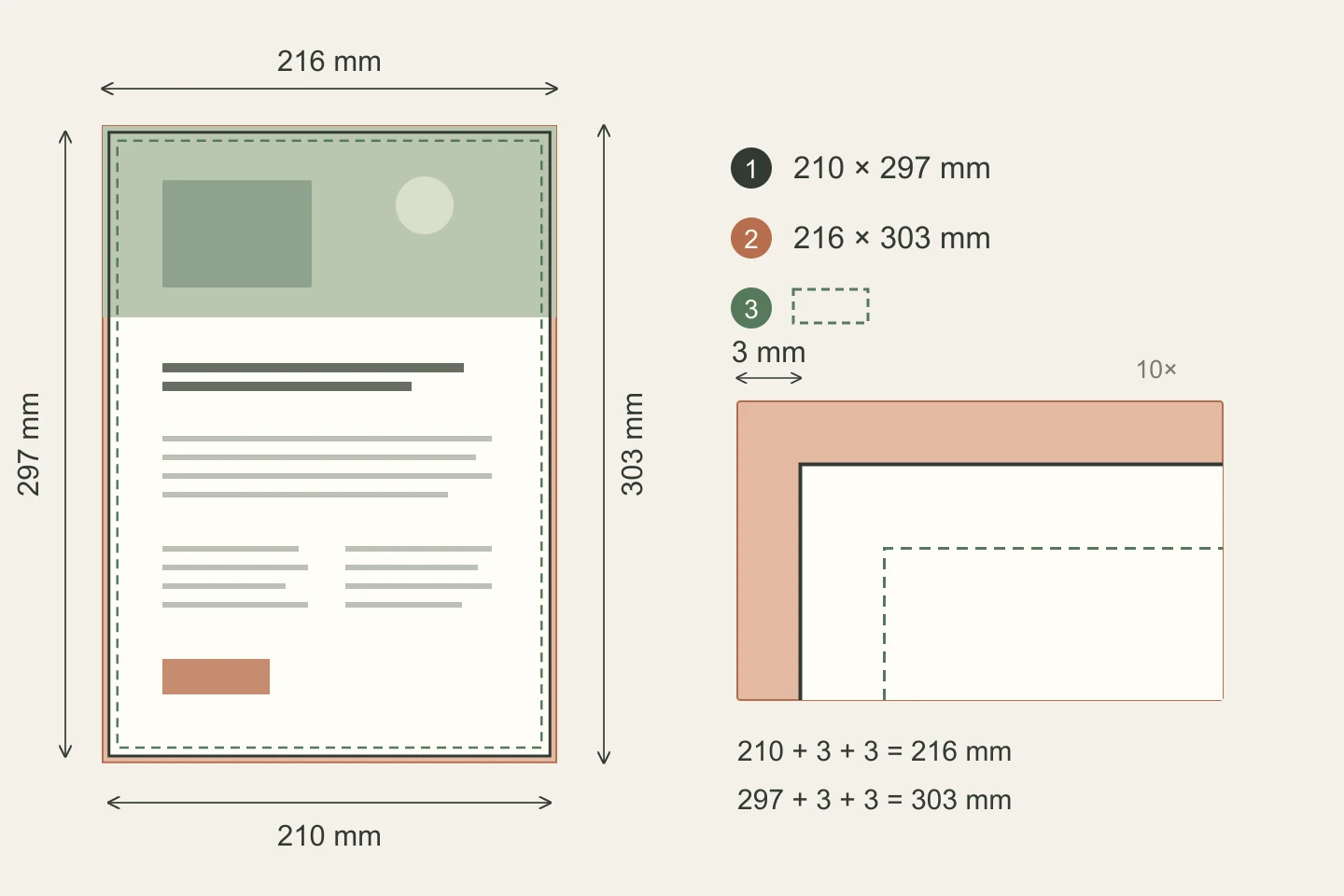
Trim size describes the finished page. A reading spread shows two facing pages. Bleed extends backgrounds beyond the cut so that a small cutting variation does not leave a white strip. A safe area keeps important content away from the cut and, where necessary, the binding. These boundaries perform different jobs.
Suppose the printer asks for a 210 × 297 mm page with 3 mm bleed on every edge. The document page remains 210 × 297 mm; the artwork including bleed covers 216 × 303 mm. This is an illustrative setup. Confirm the actual bleed, safe margins and whether to export individual pages or spreads. An adhesive-bound cover needs a template with the confirmed spine width; a folded leaflet needs its fold template.
Confirm the page count and binding early
State whether the quoted page count includes the cover. For a conventional saddle-stitched booklet, the assembled page count works in multiples of four, but a separate cover, paper changes and the printer’s production plan still need explicit agreement. Keep intentional blanks in the approved page plan.
Paper thickness and page count affect the construction. Ask how the proposed booklet will open and how much inner margin it needs. Avoid placing small text or a critical part of a product image across the binding. For a thicker saddle-stitched booklet, let the printer handle creep and imposition in its workflow instead of rearranging the PDF into printer spreads without instructions.
Give the cover one clear job
Decide what a reader should understand before choosing decorative details. A product brochure may need to identify the range and its application. A company introduction may need to explain the service and intended customer. Arrange the title, main image and brand mark around that message.
A recognised brand may justify a prominent logo; a less familiar supplier may need a more descriptive title. Review the hierarchy at the intended printed size. Check that the title is distinguishable from supporting text and that the image helps explain the offer. Leave enough space for those elements to work together.
Carry the visual system into the interior
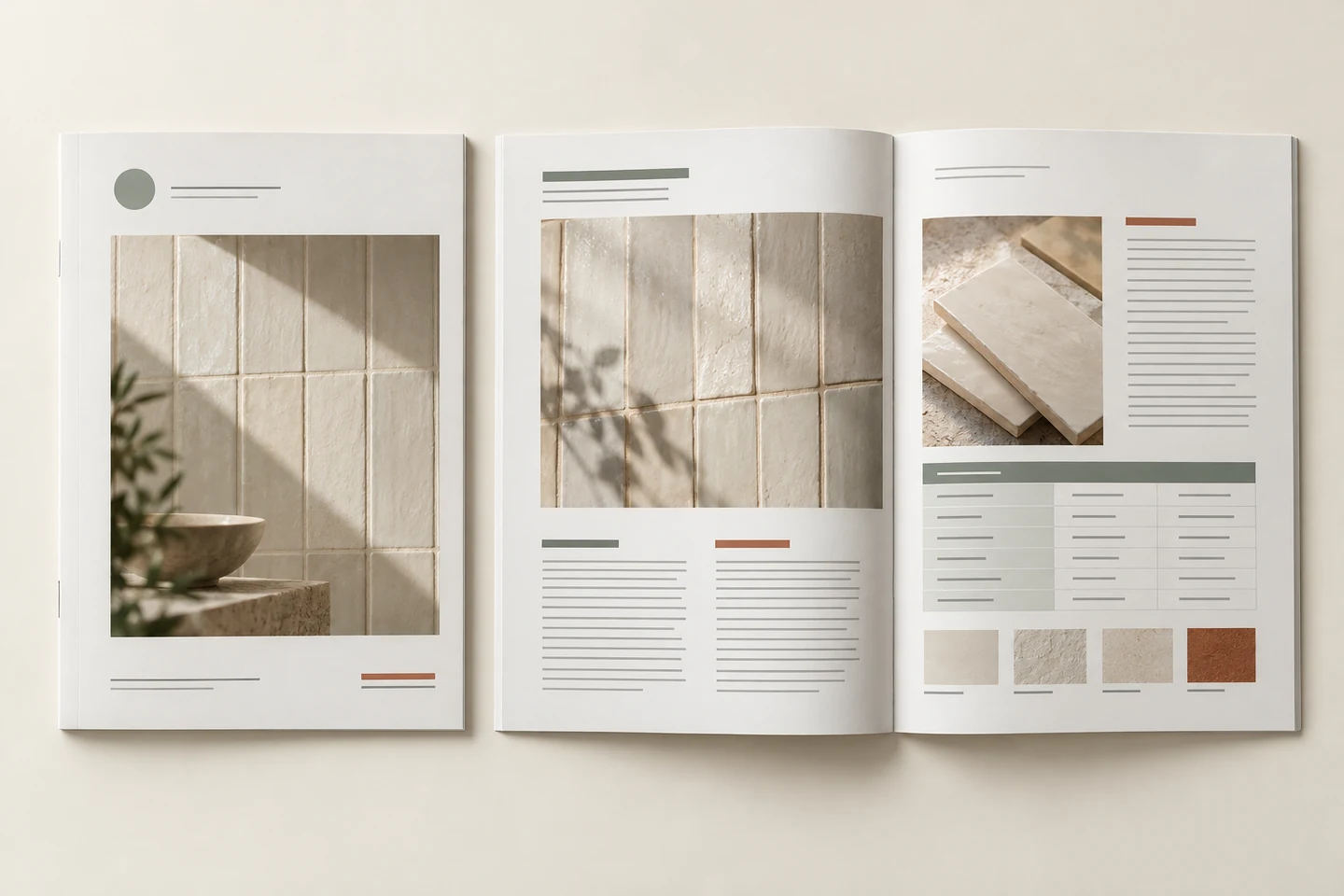
Use consistent type styles, colour roles and image treatment from the cover through the opening pages. Give comparable products the same places for model name, photograph, dimensions and options. A buyer should be able to compare the information without learning a new page structure every time.
Consistency still leaves room for different page functions. An introductory spread can be quiet while a specification page is denser. Edit a long paragraph before reducing its type size; use a table when the information is genuinely comparable. Test small labels, reversed text and contact details on a full-size printout.
Choose images, colour settings and paper together
Check photographs at their final placed size. Around 300 ppi is a useful starting target for many continuous-tone print images, subject to the printer’s requirements; enlarging a small web image does not add missing detail. Keep suitable logos and line work as vectors where possible. Fonts, spot colours, output profile and PDF settings belong in the handover discussion.
Use paper samples and an agreed proof to assess the result. Do not apply one total-ink-coverage limit to every stock and press condition: ask the printer for the intended output conditions and check the file accordingly. A physical dummy can confirm size and construction without necessarily proving final colour or every finish. State which sample approves which feature.
Use finishing where it supports the message
Describe each finish by its material, location and intended effect: for example, gold foil on the front-cover mark. Send a reference when effects are combined, and ask for any tooling or setup costs to be identified. Supply finishing artwork in the agreed layers or files.
Choose the stock and finish together, then approve a relevant sample if the effect matters to the project. A finish can support the cover hierarchy, but a clear title and readable product information still need their own space. Check positions near folds, cuts and the spine with the printer’s template.
Approve the design in stages
Agree the message, format and a representative page before applying the design to the whole booklet. Keep a named revision for each approval. Before production, check the page sequence, dimensions, content, images, links or QR codes and the specification that accompanies the PDF.
The exact proof sequence depends on the job. A useful handover identifies what has been approved, what remains to be tested and which file is the current production version. The following stages and specification are examples to adapt with your designer and printer.
A practical approval sequence
- Brief and source material
Confirm the audience, copy, product data, images, quantity and delivery requirements.
- Cover and representative spread
Approve the hierarchy and test a product or specification page at actual size.
- Full layout and preflight
Check all pages, revisions, fonts, image quality, bleed and the agreed PDF output.
- Relevant sample and production approval
Identify which construction, colour and finishing features the sample covers; record approval against a file version.
Technical references: Brother · A3/A4 · Adobe · A5 · Adobe · Bleed · Adobe · Booklets · Adobe · PPI · Adobe · Output Preview